Team member: Calendar events in ClaimXperience
 Updated
by
Jennifer B.
Updated
by
Jennifer B.
Calendar events can be used in ClaimXperience, allowing team members (which includes policyholders) to view upcoming events related to their claim.
Access the calendar
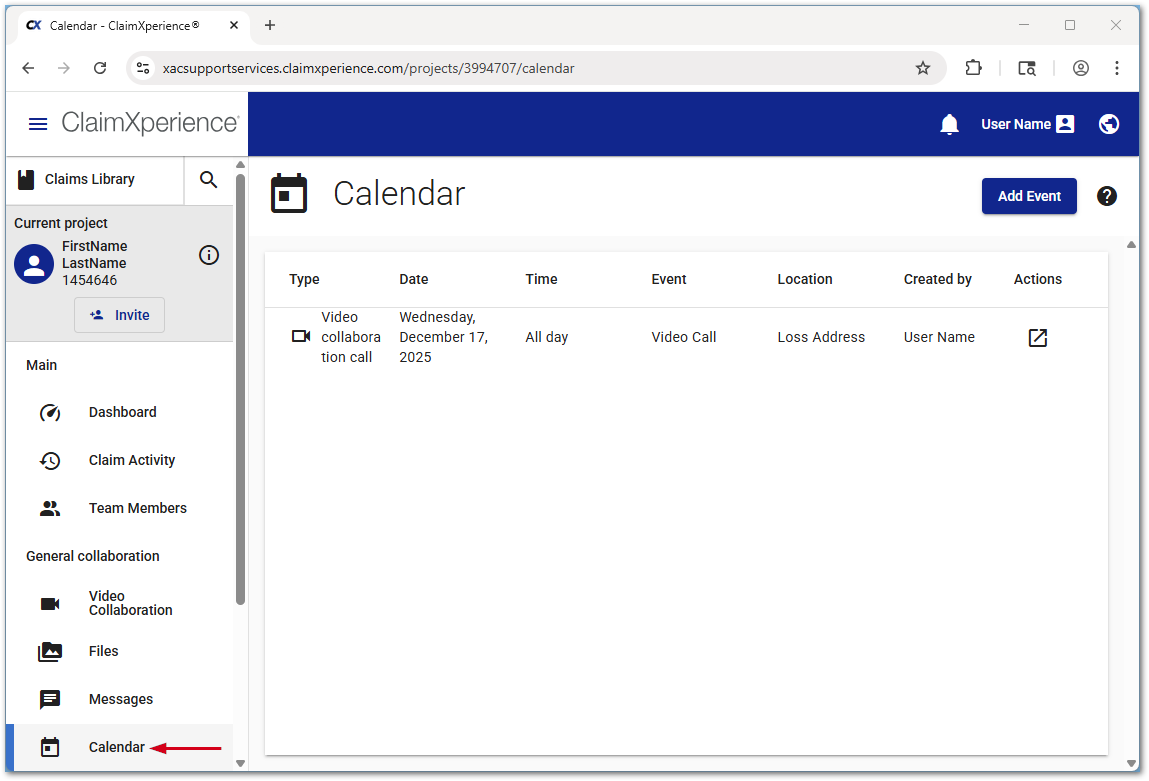
The full calendar can be viewed by selecting Calendar on the left side of a claim.
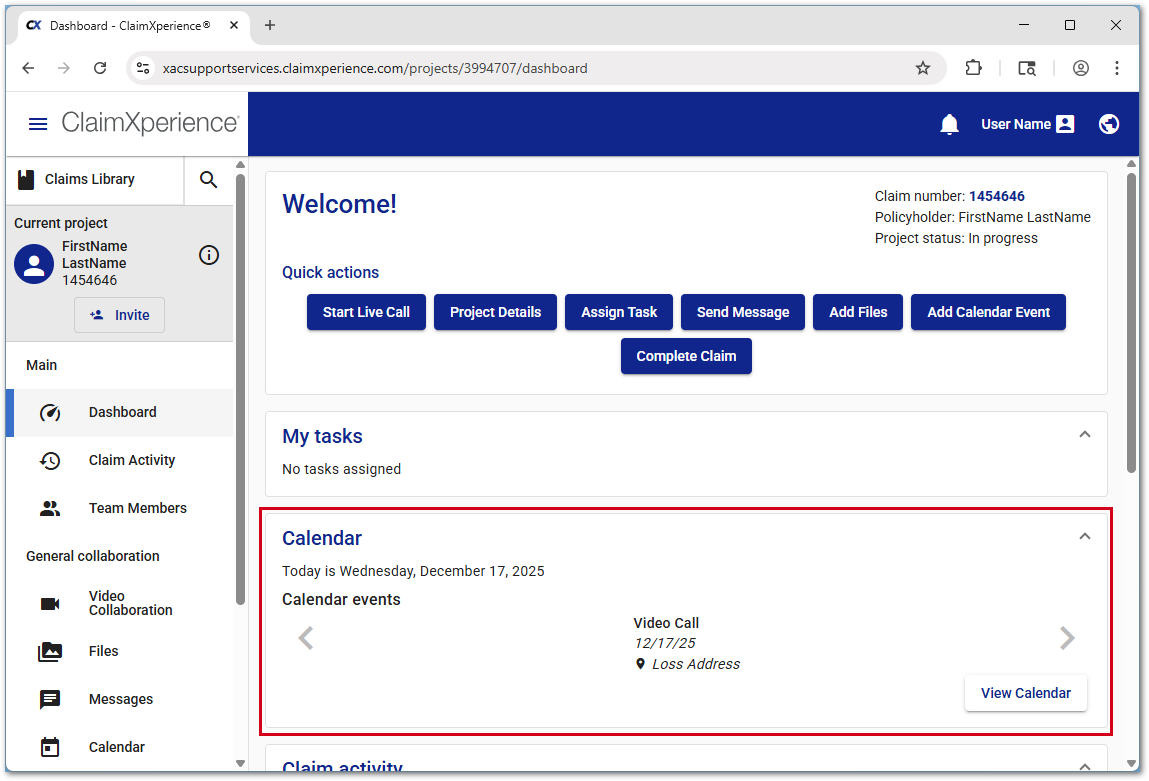
Any events scheduled for the current day are visible on the dashboard.
Add calendar events
Follow the steps below to add calendar events.
 Only team members who are visible to the policyholder can add events.
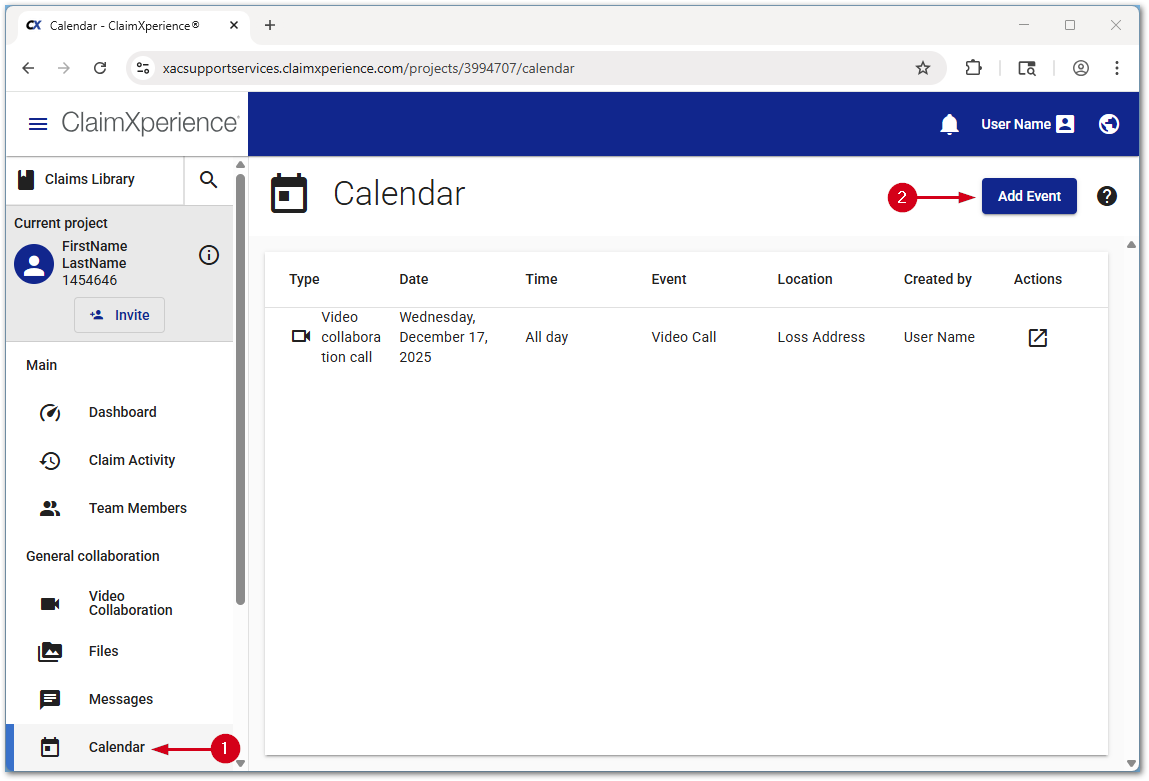
- Select Calendar.
- Select Add Event.
Note: Alternatively, select Add Calendar Event from the dashboard.
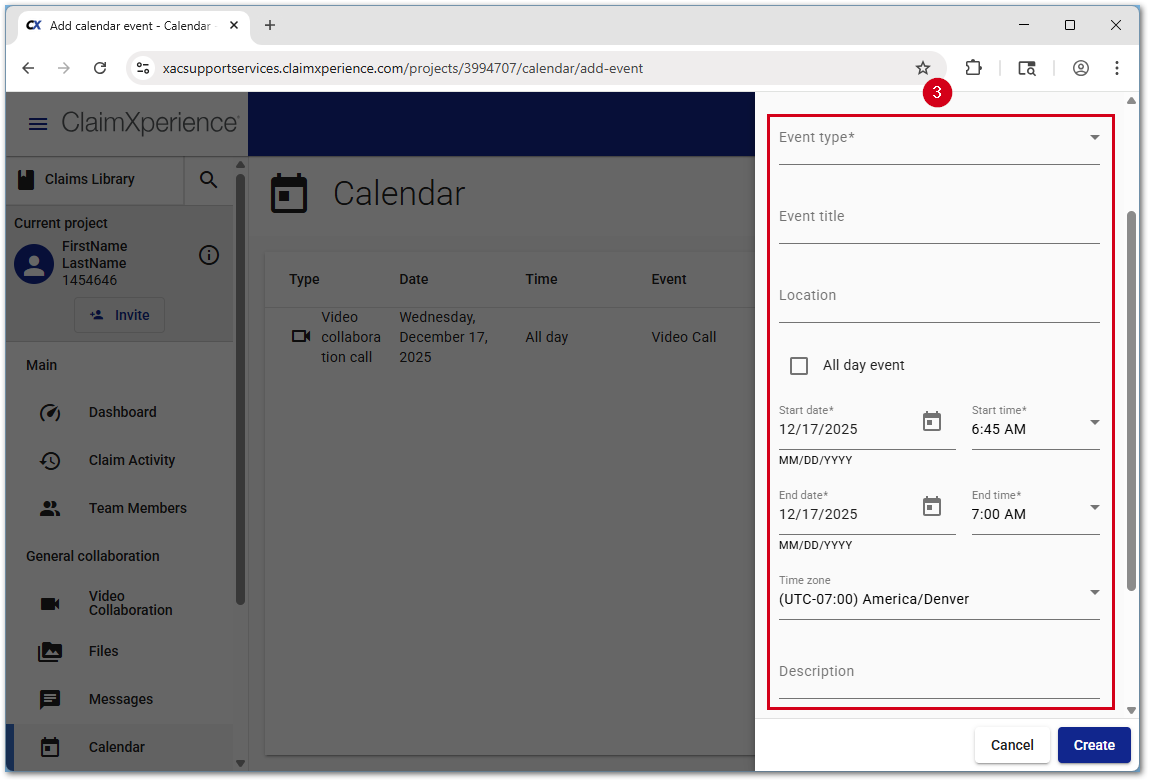
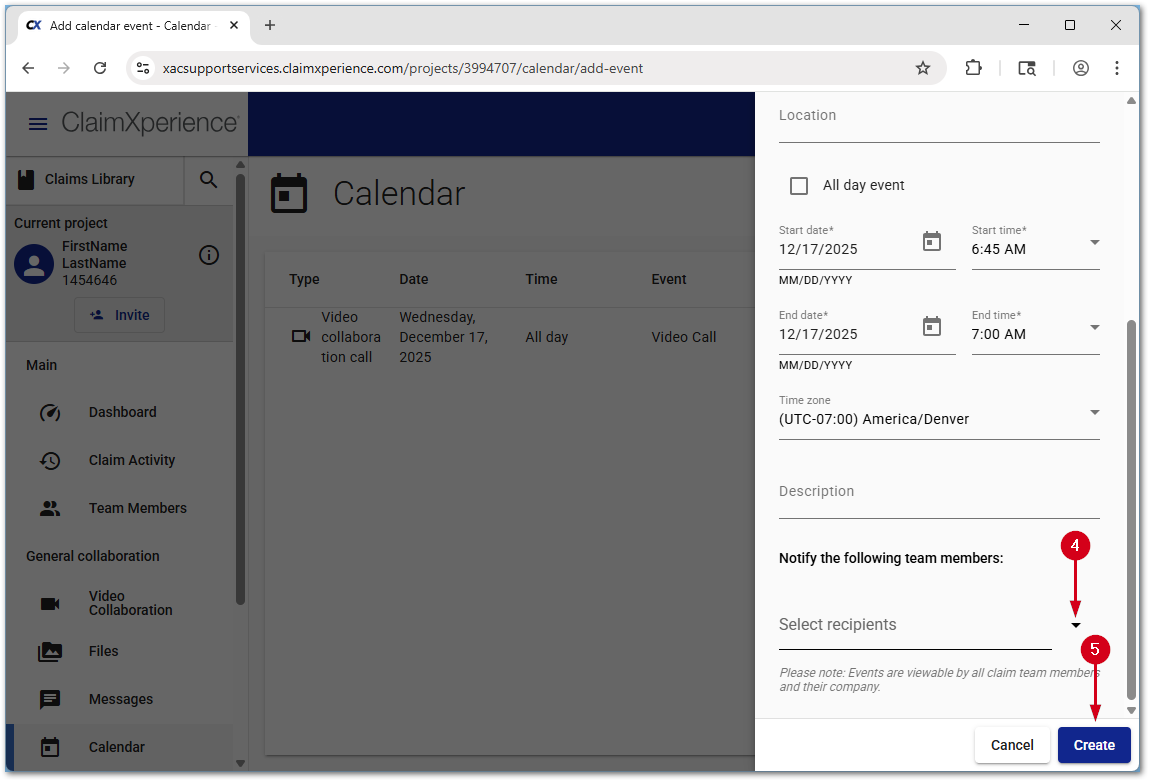
- Fill out the form.
- Select team members to notify about the event.
- Select Create.
Edit or delete calendar events
Follow the steps below to edit or delete calendar events.
Note: Automatically created claim events cannot be edited or deleted.
- Select Calendar.
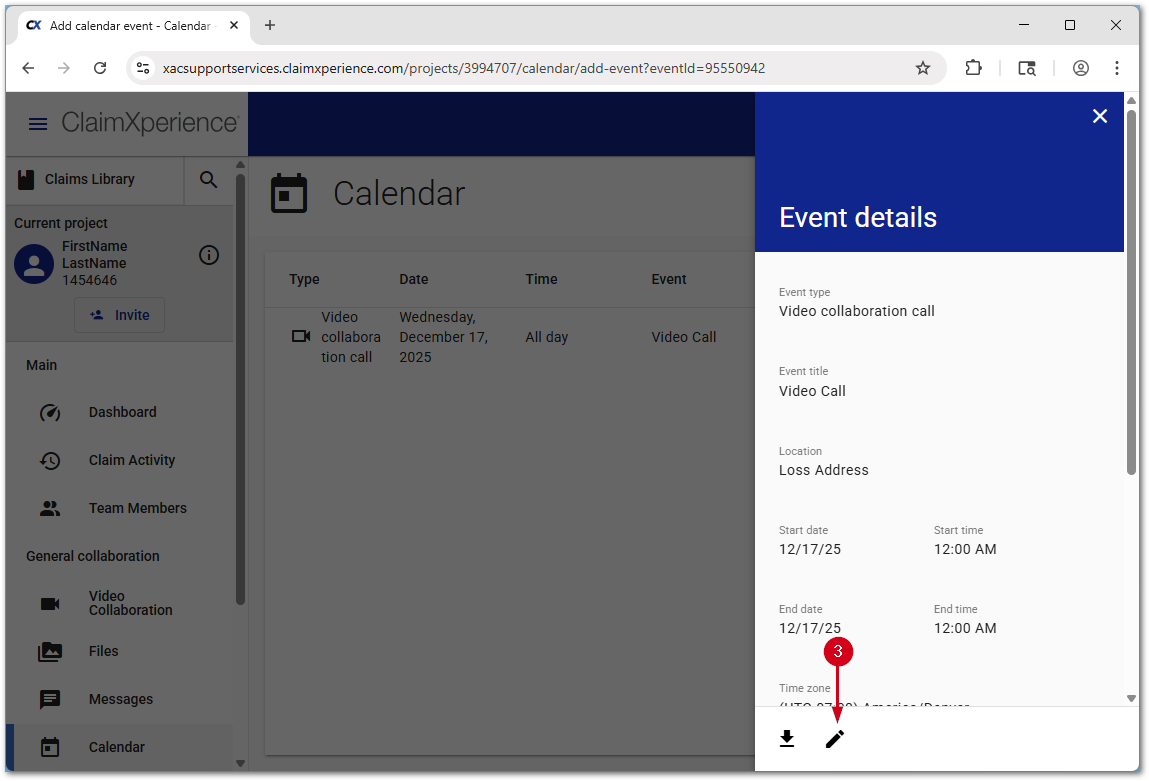
- Select the desired event.

- Select the Edit icon.
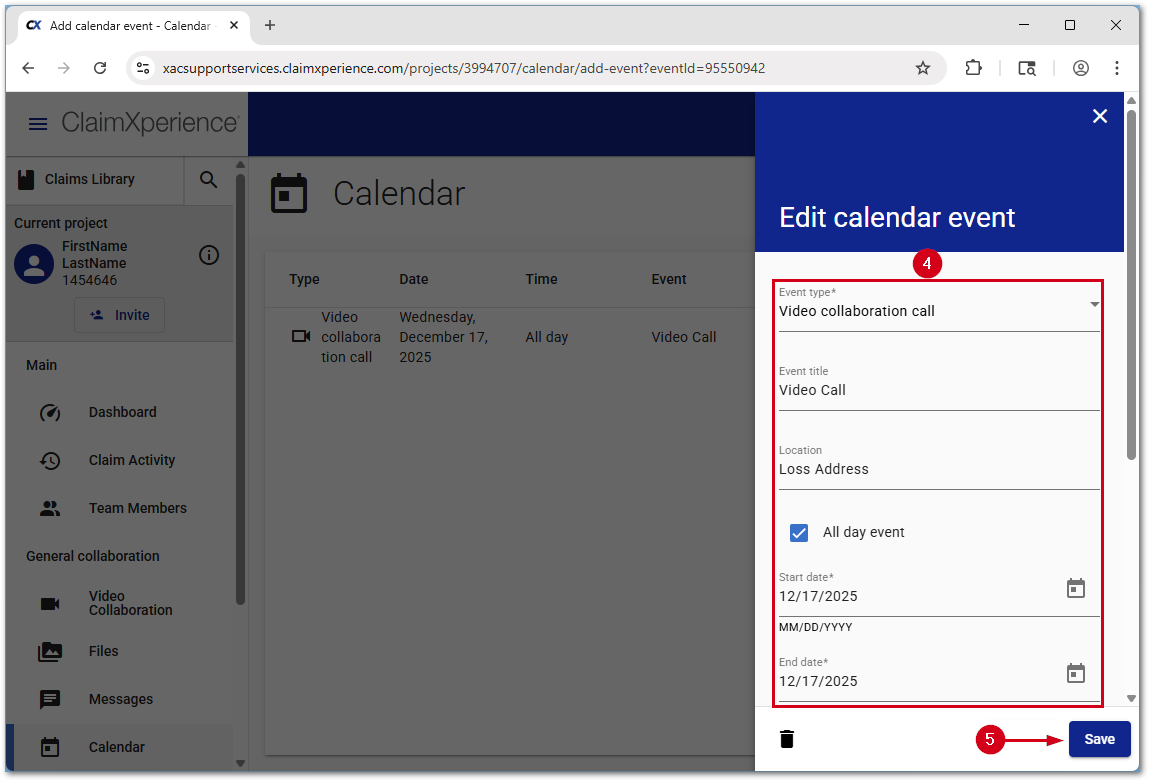
- Make any desired changes.
Note: To delete an event, select the Delete icon, then select Delete.
- Select Save.
Add calendar events to an external calendar
An .ics file can be created from any calendar entry, which can then be imported into your desired external calendar system.
- Select Calendar.
- Select the desired event.
- Select the Download calendar event icon.
