Administrator: Contents
 Updated
by
Jennifer B.
Updated
by
Jennifer B.
Settings
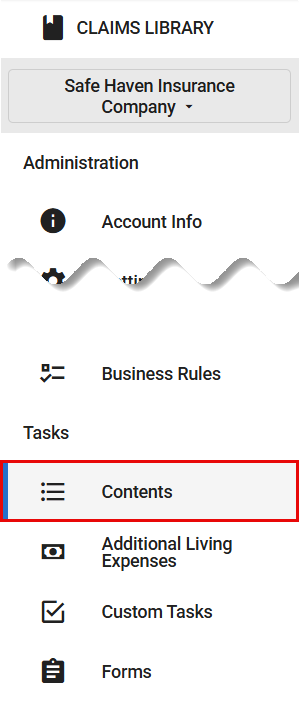
- In the administrator view of ClaimXperience, select Contents from your side navigation menu.
- Switch on the settings you want to use in your instance. These settings include the following:
- Turn on Contents replacement item functionality, which allows primary contacts to add replacement items, access and share inventories, and assign inventory-related tasks.
- Lock exported items, which locks submitted items that are exported to Xactimate/XactContents. Users cannot edit, flag, or delete locked items in ClaimXperience.
- Enable Quick Inventory, which presents a list of items for the room type the user selects. Users can select items for replacement.
- Display additional fields menu collapsed by default, presents users with collapsed additional fields that they can manually expand.
- Enable ‘Purchased from’ field, which includes the Purchased from field as an option in the Add Item drawer.
- Enable ‘Method of purchase’ field, which includes the Method of purchase field as an option in the Add Item drawer.
- Enable ‘Business use’ field, which includes the Business use field as an option in the Add Item drawer.
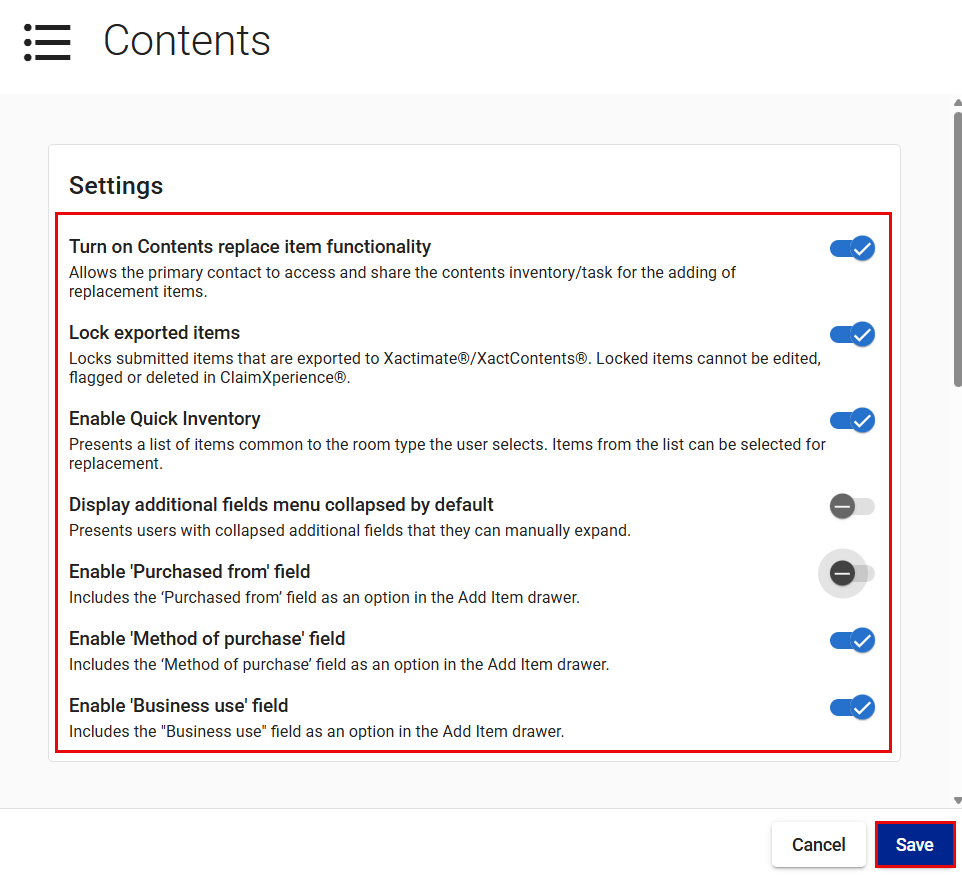
- Select Save.
Searching
You can allow and require users to search for personal property items. If the General quote option is selected and users are unable to find an exact match for their item, search results may include comparable items.
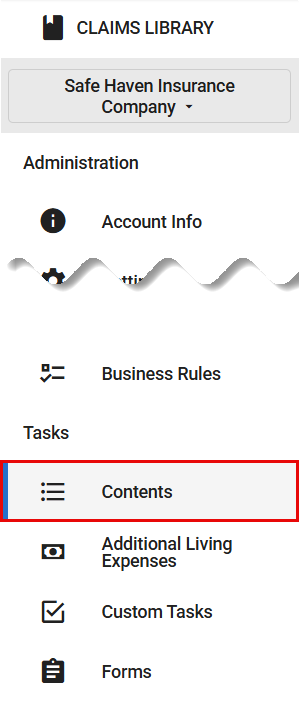
- In the administrator view of ClaimXperience, select Contents from your side navigation menu.
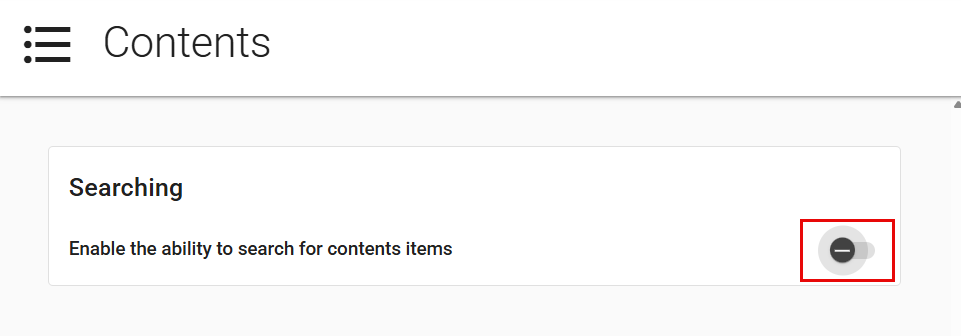
- In the Searching card, switch on the Enable the ability to search for contents items toggle. This allows users to search for items in the Contents workflow.
- Select at least one of the options that follow. These include the following:
- Vendor items, which searches for items from common retailers.
- Amazon integrated search, which searches for items from Amazon.
- General quote, which shows general items not tied to specific listings.
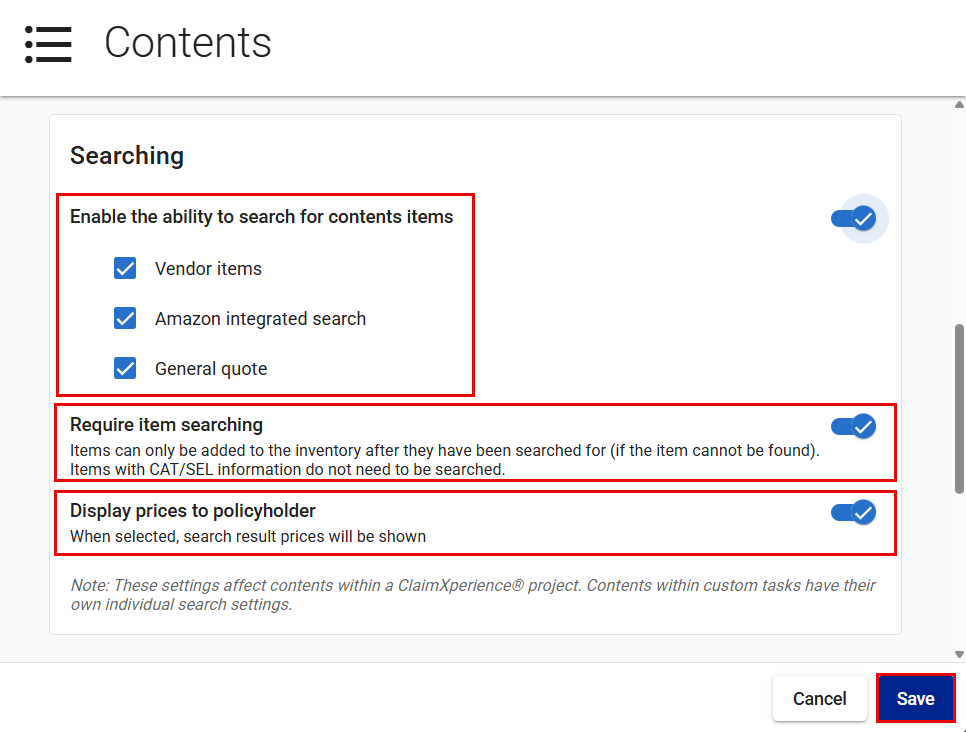
- To require users to search for items within ClaimXperience, switch on the Require item searching toggle.
- To have search results include prices, switch on the Display prices to policyholder toggle.
- Select Save.